Connection Agent allows your Octopus Cloud instance to connect to privately hosted internal applications such as Git repositories, package feeds, and SMTP servers without requiring inbound firewall rules or a VPN.
A Connection Agent is a container image you deploy within your private network. It establishes outbound WebSocket connections to your Octopus Cloud instance and acts as a proxy, forwarding traffic between Octopus Cloud and your internal applications.
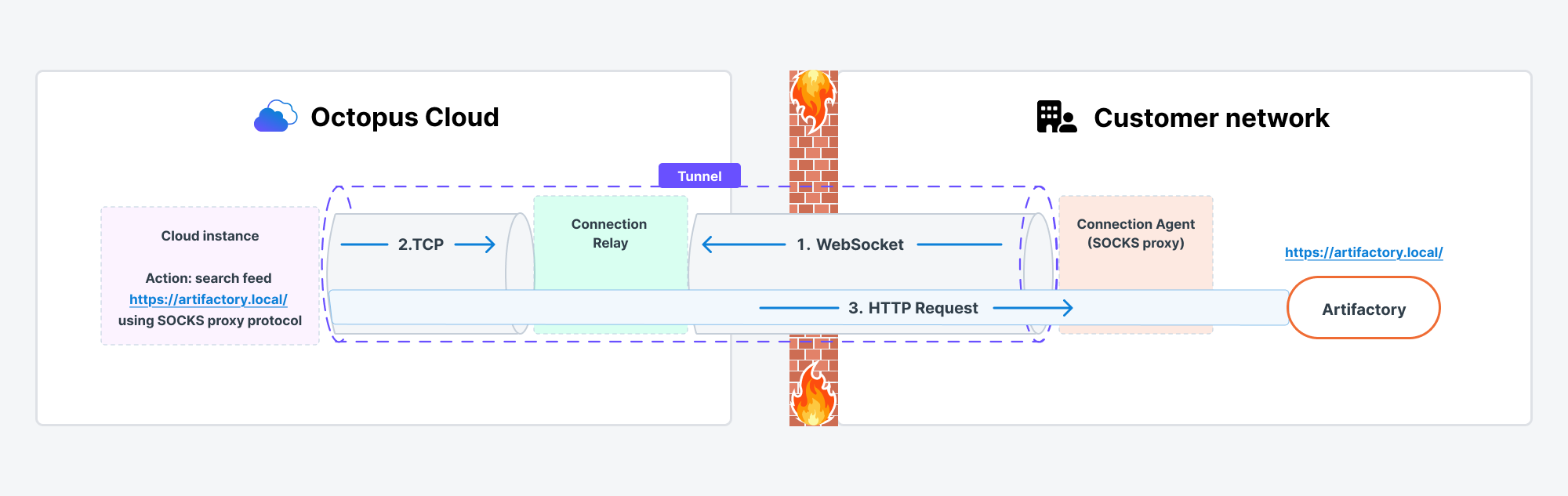
Supported applications
In the current release, Connection Agent supports the following application types:
- Git repositories (e.g. GitHub Enterprise, Bitbucket)
- SMTP servers
- External feeds:
- Artifactory Generic Feed
- Azure Container Registry
- Docker Container Registry
- GitHub Repository Feed
- Helm Feed
- Maven Feed
- NPM Feed
- NuGet Feed
- OCI Container Registry
How to access this feature
Connection Agent is currently in Public Preview, available only to Octopus Cloud Enterprise tier customers.
If you would like to access this feature, please reach out to our support team. By default, you can register up to 5 Connection Agents per instance. If you need more, contact our support team to discuss your requirements.
Prerequisites
Before registering a Connection Agent, ensure your Octopus Cloud has Connection Agents enabled. If not, please contact our support team.
1. Connection Agent Registration
Only users with ConfigureServer permission (e.g. belonging to Octopus Managers Team) on your Octopus Cloud instance can register new Connection Agents. Please ensure you are a member of this team or a team with ConfigureServer permission before proceeding.
-
Decide on a meaningful
Agent Namethat will assist in identifying where the Connection Agent is deployed. This will be used by Octopus to determine which Connection Agent the configured applications will be routed to. Agent Names can be up to 200 characters and may include alphanumeric characters, hyphens (-), and periods (.). -
Decide on a meaningful
Key Namethat will assist in identifying the private key credential the Connection Agent will use for authentication. Key Names can be up to 200 characters and may include alphanumeric characters, hyphens (-), and periods (.). -
Generate an RSA key pair to be used to authenticate the Connection Agent. Ensure a minimum key size of
2048.Run the following command, substituting in the desired Agent Name:
AGENT_NAME=<Agent Name>
openssl genrsa -out ConnectionAgent-$AGENT_NAME.pem 2048
openssl rsa -in ConnectionAgent-$AGENT_NAME.pem -outform PEM -pubout -out ConnectionAgent-$AGENT_NAME.pem.pub
IMPORTANT - Protect your Private Key: The generated
.pemfile is your private key and must be kept secret. It allows Connection Agent to authenticate and proxy requests from Octopus Cloud. If the private key is compromised, immediately rotate your private key. -
Create an API key with a short expiry date on your Octopus Cloud instance. This API key will only be used to register the Connection Agent.
-
Register the Connection Agent with your Octopus Cloud instance.
Note that this command does not need to be run on the same infrastructure you intend to run the Connection Agent.
Run the following command, substituting the values:
CONNECT_URL- This will be in the formatwss://<dns-prefix>.octopus.app/connectwhere<dns-prefix>is the hostname of your Cloud InstanceAPI_KEY- The API key created above
CONNECT_URL=<Connect URL>
OCTOPUS_API_KEY=<API Key>
KEY_NAME=<Key Name>
PUBLIC_KEY=$(cat ConnectionAgent-$AGENT_NAME.pem.pub)

docker run --rm \
    octopusdeploy/connection-agent \
    register --connect-url $CONNECT_URL --octopus-cloud-instance-api-key $OCTOPUS_API_KEY --agent-name $AGENT_NAME --key-name $KEY_NAME --public-key "$PUBLIC_KEY"
Note down the returned values, you will need to apply them as environment variables when the Connection Agent is deployed:
AUTH_SERVER_DOMAINAUTH_SERVER_CLIENT_IDAPI_AUDIENCECONNECT_URL
-
Configure forwarding rules to map fully qualified domain names (FQDNs) for the applications that are to be accessed via the Connection Agent. Note that this command does not need to be run on the same infrastructure you intend to run the Connection Agent.
Run the following command, substituting the values:
FQDN- The fully qualified domain name of the application (e.g.nuget.internal.example.com)
FQDN=<FQDN>

docker run --rm \
octopusdeploy/connection-agent \
add-fqdn --connect-url $CONNECT_URL --octopus-cloud-instance-api-key $OCTOPUS_API_KEY --agent-name $AGENT_NAME --fqdn $FQDN
For each application hosted over HTTPS with either an internal CA issued or self-signed certificate, add the
--ignore-certificate-validation-errorsoption.
2. Connection Agent Deployment
Deploy the octopusdeploy/connection-agent container into your desired private network, specifying the following environment variables returned when the Connection Agent was registered:
AUTH_SERVER_DOMAINAUTH_SERVER_CLIENT_IDAPI_AUDIENCECONNECT_URL
Additionally, specify your private key (the PEM-encoded Private Key generated previously) as either the environment variable AUTH_SERVER_PRIVATE_KEY_PEM, or as the path to your private key as AUTH_SERVER_PRIVATE_KEY_PEM_PATH.
IMPORTANT - Protect your Private Key: The AUTH_SERVER_PRIVATE_KEY_PEM value must be kept secret. It allows Connection Agent to authenticate and proxy requests from Octopus Cloud. If the private key is compromised, immediately rotate your private key.
Running the Connection Agent in Docker
For example, you can use the following approach to quickly test the Connection Agent using Docker:
AGENT_NAME=<Agent Name>
PRIVATE_KEY_PATH=ConnectionAgent-$AGENT_NAME.pem

docker run --interactive --rm \
--name ConnectionAgent  \
--env 'AUTH_SERVER_DOMAIN=m2m.auth.octopus.com' \
--env 'AUTH_SERVER_CLIENT_ID=<PROVIDED_CLIENT_ID>' \
--env "AUTH_SERVER_PRIVATE_KEY_PEM=$(cat $PRIVATE_KEY_PATH)" \
--env 'API_AUDIENCE=<PROVIDED_API_AUDIENCE>' \
--env 'CONNECT_URL=wss://<HOST_OF_YOUR_INSTANCE>/connect' \
'octopusdeploy/connection-agent' \
run
Running the Connection Agent in Kubernetes
To deploy the Connection Agent in Kubernetes, here is an example Deployment YAML:
apiVersion: apps/v1
kind: Deployment
metadata:
  name: connection-agent
  namespace: connection-agent
spec:
  selector:
    matchLabels:
      app: connection-agent
  template:
    metadata:
      labels:
        app: connection-agent
    spec:
      containers:
        - name: connection-agent
          image: octopusdeploy/connection-agent
          args:
            - run
          env:
            - name: AUTH_SERVER_DOMAIN
              value: "m2m.auth.octopus.com"
            - name: CONNECT_URL
              value: "wss://<HOST_OF_YOUR_INSTANCE>/connect"
            - name: AUTH_SERVER_CLIENT_ID
              value: <PROVIDED_CLIENT_ID>
            - name: API_AUDIENCE
              value: <PROVIDED_API_AUDIENCE>
            - name: AUTH_SERVER_PRIVATE_KEY_PEM
              valueFrom:
                secretKeyRef:
                  name: connection-agent-secret
                  key: AUTH_SERVER_PRIVATE_KEY_PEM
3. Connection Agent Management
The Connection Agent Docker image can be run as a CLI:
docker run --rm octopusdeploy/connection-agent --helpThe following commands are available:
| Command | Purpose |
|---|---|
| run | Long-running proxy process - establishes WebSocket tunnels to Octopus Cloud |
| register | Create the Connection Agent on your instance and authorize its first public key |
| unregister | Delete the Connection Agent and all its keys |
| list-agents | Show every Connection Agent registered on your instance |
| add-key | Authorize an additional public key for an existing Connection Agent |
| remove-key | Revoke a public key |
| list-keys | Show the public keys currently authorized for a Connection Agent |
| add-fqdn | Create or update a forwarding rule for an FQDN |
| remove-fqdn | Delete a forwarding rule |
| list-fqdn | Show all forwarding rules and which Connection Agent they map to |
For full flag listings, append --help to any command.
Read only view of registered Connection Agents
You can view the registered Connection Agents in the UI. If you navigate to Congifurations and select Connection Agents, you will see your registered agents.
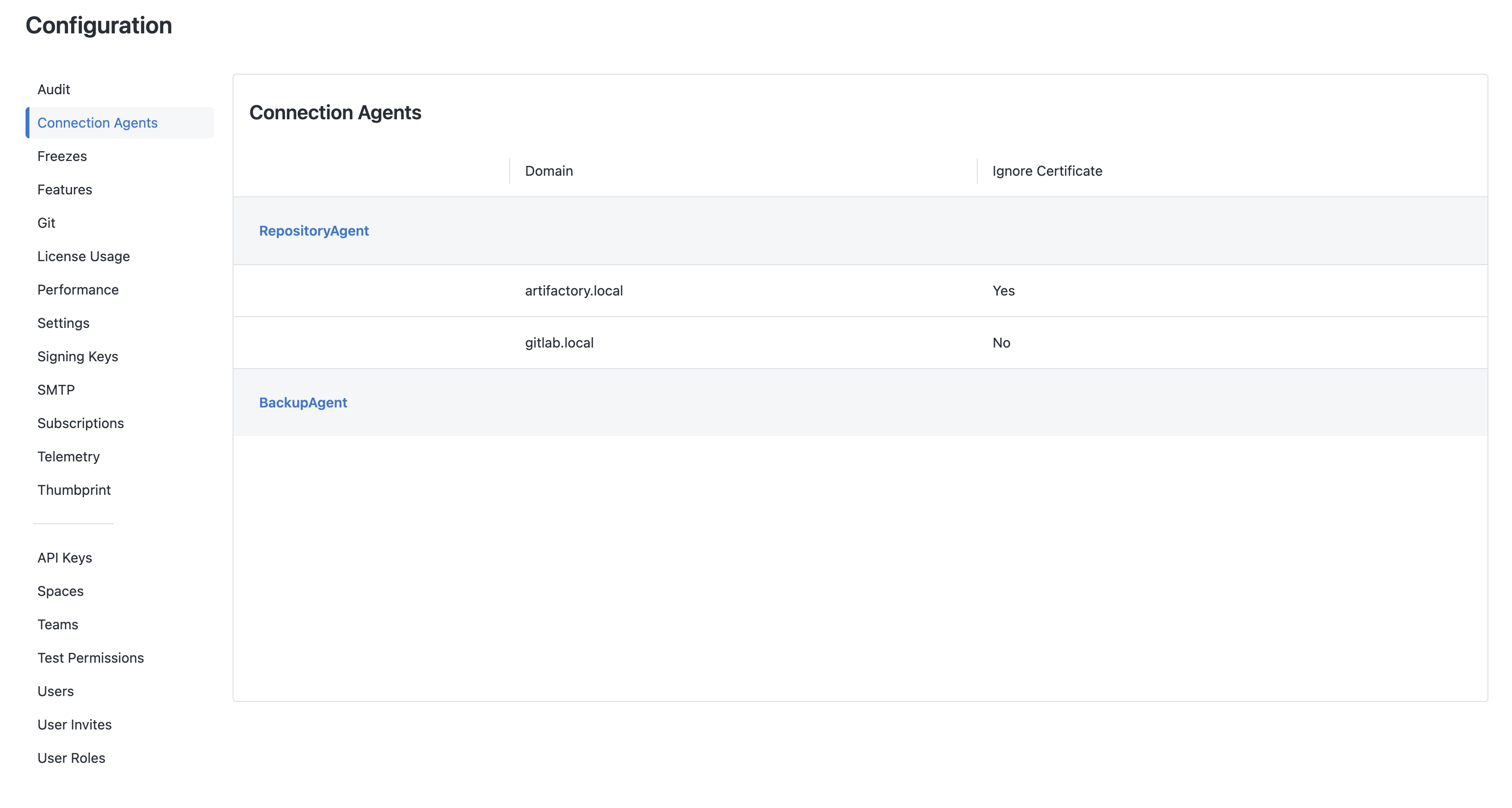
Note that this is a read only view and you will not be able to make any changes to the configuration of your Connection Agents via the UI.
Rotate the agent’s key
To rotate Connection Agent’s private key, add a new key first, then remove the old one. This avoids downtime as the agent can authenticate with either while the rotation happens.
# 1. Generate a new key pair
openssl genrsa -out ConnectionAgent-$AGENT_NAME.pem 2048
openssl rsa -in ConnectionAgent-$AGENT_NAME.pem -outform PEM -pubout -out ConnectionAgent-$AGENT_NAME.pem.pub

# 2. Authorize the new public key
docker run --rm \
octopusdeploy/connection-agent \
add-key --connect-url $CONNECT_URL --octopus-cloud-instance-api-key $OCTOPUS_API_KEY --agent-name $AGENT_NAME --key-name $KEY_NAME --public-key "$(cat ConnectionAgent-$AGENT_NAME.pem.pub)"

# 3. Restart the agent pointing at the new private key and verify it's connected

# 4. List keys to confirm both are present
docker run --rm \
octopusdeploy/connection-agent \
list-keys --connect-url $CONNECT_URL --octopus-cloud-instance-api-key $OCTOPUS_API_KEY --agent-name $AGENT_NAME

# 5. Remove the old key
docker run --rm \
octopusdeploy/connection-agent \
remove-key --connect-url $CONNECT_URL --octopus-cloud-instance-api-key $OCTOPUS_API_KEY --agent-name $AGENT_NAME --key-name $OLD_KEY_NAME
Help us continuously improve
Please let us know if you have any feedback about this page.
Page updated on Thursday, May 21, 2026